Copilot Studio Authorization and Access Control | Day 64
Secure Copilot Studio agents with clear authorization, access control, protected resources, action permissions, and identity-aware security checks.
- Published
- Reading time
- 7 min read
Week 10 · Day 64 of 365 in 365 Days of Copilot Studio — view the full series
Before you start
Is this guide for you?
- Best entry point
- 365 Days of Copilot Studio
- Time investment
- 7 min read
In this article
- What Authorization Means
- Authentication vs Authorization
- Why Access Control Matters for Agents
- The Agent Security Path
- What Needs Authorization
On this page (14 sections)
Day 64 of 365 Days of Copilot Studio explains authorization and access control in Copilot Studio: how to protect identity, control access, secure actions, and make sure an agent only uses resources the right people are allowed to use.
Day 61 introduced authentication. Day 62 compared authentication methods. Day 63 explained single sign-on. Day 64 completes the security chain by asking the question that matters after sign-in: what is this user allowed to do?
This lesson builds on Day 61: Copilot Studio Authentication Explained, Day 62: Copilot Studio User Authentication Methods, and Day 63: Copilot Studio Single Sign-On Explained.
Note: Authentication proves identity. Authorization controls access. A secure agent needs both.
What Authorization Means
Authorization is the decision layer that controls what a signed-in user can access or do. In a Copilot Studio agent, that may include knowledge sources, SharePoint files, Dataverse rows, Power Automate flows, API actions, Microsoft Graph data, tickets, approvals, or business records.
The core security path is:
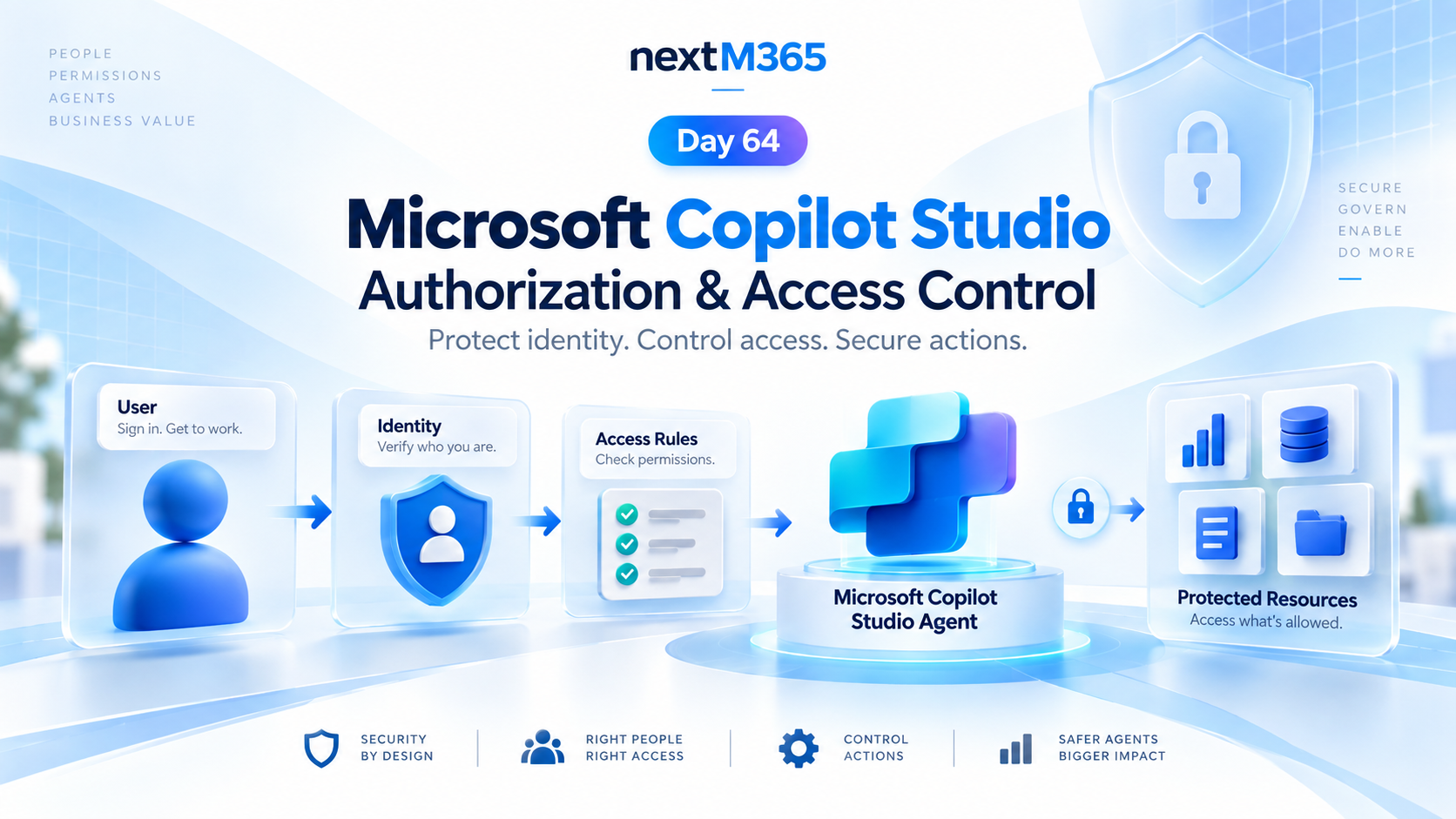
User signs in -> identity is verified -> authorization checks run -> Copilot Studio agent uses only allowed resources.
The user experience can feel simple, but the design behind it must be deliberate. The agent should not treat every signed-in user as equally trusted for every piece of data or every action.
Authentication vs Authorization
| Layer | Question | Copilot Studio example |
|---|---|---|
| Authentication | Who is the user? | Microsoft Entra ID verifies the signed-in employee. |
| SSO | Can the user reuse a trusted sign-in? | A Teams user accesses the agent without repeated sign-in prompts. |
| Authorization | What is the user allowed to access or do? | The agent checks whether the user can view a document, update a record, or trigger an action. |
A signed-in user may still be blocked from a resource. That is not a broken user experience. That is access control doing its job.
Why Access Control Matters for Agents
Copilot Studio agents can sit in front of important business systems. Once an agent can retrieve data, summarize protected knowledge, call tools, or trigger workflows, security is no longer only a publishing setting. It becomes part of the agent architecture.
Good authorization helps you protect:
- Identity: know who is using the agent.
- Access: control what each user or group can reach.
- Actions: prevent unauthorized updates, approvals, submissions, or escalations.
- Resources: keep SharePoint, Dataverse, Graph, APIs, and line-of-business systems permission-aware.
- Trust: make secure agent behavior explainable to IT, compliance, and business owners.
The Agent Security Path
The Day 64 visual frames security as an end-to-end path: user -> identity -> Copilot Studio agent -> protected resources. Each step needs a clear access decision.
- User: the person starts the conversation and may already be signed in through Microsoft 365.
- Identity: Microsoft Entra ID or another configured provider verifies who the user is.
- Access control: the design checks groups, roles, scopes, resource permissions, and business rules.
- Agent: Copilot Studio uses permitted knowledge, tools, topics, and actions.
- Protected resources: data and systems respond only when the access model allows it.
The safest pattern is simple: carry identity forward, check permissions before protected work, and fail safely when access is denied.
What Needs Authorization
Authorization is not limited to one screen or one setting. It applies anywhere the agent can expose value or cause change.
| Area | Access question | Risk if ignored |
|---|---|---|
| Knowledge sources | Can this user see this source content? | The agent may reveal restricted information. |
| Actions and tools | Can this user run this operation? | The agent may update or trigger work without approval. |
| Connectors | Whose credentials are used? | A configured connection may overexpose data. |
| APIs | Does the API validate user permission? | A token may be accepted without the right business check. |
| Channels | Who can access the published agent? | The wrong audience may reach an internal experience. |
User-Delegated Access vs Configured Credentials
One of the most important design choices is whether an action runs as the signed-in user or through a configured connection.
User-delegated access is useful when the protected system already understands user permissions. If the user cannot open a SharePoint file, Dataverse row, or API resource directly, the agent should not magically bypass that limit.
Configured credentials can be useful for controlled automation, but they need extra rules. A service connection may have broader access than the user. If the agent uses that connection, your topic logic, action inputs, API layer, or flow must enforce business-level permission checks.
Warning: A configured connection is not a substitute for authorization. If a connection can see more than the user should see, add explicit checks before returning data or running actions.
Common Access Control Patterns
- Group-based access: allow only specific Microsoft Entra ID groups or Teams to use the agent or a sensitive action.
- Role-based access: map roles such as employee, manager, HR, IT support, sales, or administrator to allowed capabilities.
- Resource-level permissions: rely on SharePoint, Dataverse, Graph, or API permissions to trim what the user can see.
- Business-rule checks: verify conditions such as region, department, ownership, approval status, or request type before acting.
- Step-up controls: require sign-in, approval, confirmation, or handoff before sensitive actions.
Example: IT Access Agent
An employee asks the agent to restore access to a project workspace. The agent should not simply add the user to the site because they asked nicely.
A safer flow is:
- Identify the signed-in user.
- Confirm the workspace being requested.
- Check whether the user belongs to the project, department, or approval path.
- Check whether the action requires manager or site owner approval.
- Create a ticket or run a flow only if the access policy allows it.
- Log who requested the action and what decision was made.
The agent can still be helpful. It can explain why access is denied, route the request to an owner, or create an approval record instead of making an unsafe change.
Example: HR Policy Agent
An employee asks for details about a leave policy. A public policy summary may be safe for all employees, but personalized eligibility may depend on location, employment type, tenure, or role.
The agent should separate general answers from protected or personalized answers. General information can be broad. Personalized information should depend on identity and authorized data access.
Design Safe Denied Access Messages
Denied access should be clear and safe. The agent should avoid leaking hidden resource names, internal IDs, raw token errors, stack traces, or policy details that the user should not see.
Good denied access messages sound like this:
- "I cannot access that resource with your current permissions."
- "This request needs approval from the workspace owner."
- "I can help create an access request instead."
- "Please contact your administrator if you believe this is incorrect."
Bad denied access messages expose too much about the underlying system or imply the user can work around the policy.
Testing Authorization
Authorization cannot be proven by testing only as an administrator. Administrators often have broad access that hides real production failures.
Test with:
- Allowed employee users.
- Denied employee users.
- Users from a different department or group.
- Guests or external users if the channel supports them.
- Normal non-admin users.
- Users with partial resource permissions.
- Expired sessions or missing consent.
- Mobile, Teams, browser, and embedded channel experiences.
For every protected action, test both the happy path and the denied path. The denied path is where many security bugs hide.
Authorization Readiness Checklist
- Agent audience is documented.
- Protected knowledge sources are identified.
- Actions and tools have an owner, purpose, and access model.
- Each action states whether it runs as the user or through configured credentials.
- Allowed and denied personas are defined.
- SharePoint, Dataverse, Graph, API, and connector permissions are reviewed.
- Business rules are enforced before sensitive actions.
- Denied access messages are safe and helpful.
- Audit trails show who requested what and what happened.
- Admins, makers, and business owners know who supports access failures.
Common Mistakes
- Assuming SSO grants access: SSO improves sign-in, but authorization still decides what is allowed.
- Testing only with owner accounts: owners rarely experience normal user restrictions.
- Using broad service credentials: this can bypass resource-level security unless you add business checks.
- Hiding denied paths: users need clear next steps when the agent cannot proceed.
- Forgetting channel scope: a secure action in Teams may behave differently in a website or custom channel.
Key Takeaway
Authorization is where secure Copilot Studio agents become trustworthy business systems. Authentication identifies the user. SSO makes that identity easier to use. Authorization decides what the user can actually access or do.
The practical rule is: protect identity, control access, and secure actions across the entire agent path. If the agent touches protected resources, make authorization explicit, test denied users, and keep every action within least privilege.
Next: Day 65: Managing User Permissions in Microsoft Copilot Studio.
Tagged
Security · Permissions · AI Agents · Governance · Integrations
Frequently asked questions
What is authorization in Copilot Studio?
Authorization decides what an authenticated user is allowed to see, retrieve, update, or trigger inside a Copilot Studio agent experience.
How is authorization different from authentication?
Authentication verifies who the user is. Authorization checks what that verified user can access or do.
Why does access control matter for Copilot Studio agents?
Agents can connect to knowledge, tools, flows, APIs, and business systems. Access control prevents the agent from exposing data or actions beyond the user's allowed permissions.
Should Copilot Studio actions run as the user or with configured credentials?
That depends on the scenario. User-delegated access is often best for permission-aware resources, while configured credentials require extra business checks so the agent does not overexpose data.
What should I test before publishing an authorization-sensitive agent?
Test allowed users, denied users, non-admin users, guests, missing resource permissions, configured connections, action approvals, failure messages, and audit trails.
Sources
- Microsoft Learn: Configuration End User Authentication, Microsoft
- Microsoft Learn: Configuration Authentication Azure Ad, Microsoft
- Microsoft Learn: Overview, Microsoft
- Microsoft Learn: Wp Data Loss Prevention, Microsoft
Have a Microsoft 365 topic idea?
Share article suggestions, community session ideas, corrections, or real-world scenarios for future nxtM365 learning notes.
Keep learning Microsoft 365
Explore more practical guides for SharePoint, Power Platform, Copilot Studio, migration, automation, governance, and security.
Continue learning
Related tutorials
Related questions
Related comparisons
Next action