Publish Your Copilot Studio Agent to Facebook Messenger | Copilot Studio Day 53
Publish a Copilot Studio agent to Facebook Messenger: Meta assets, channel setup, authentication, real-user testing, human escalation, and monitoring.
- Published
- Reading time
- 12 min read
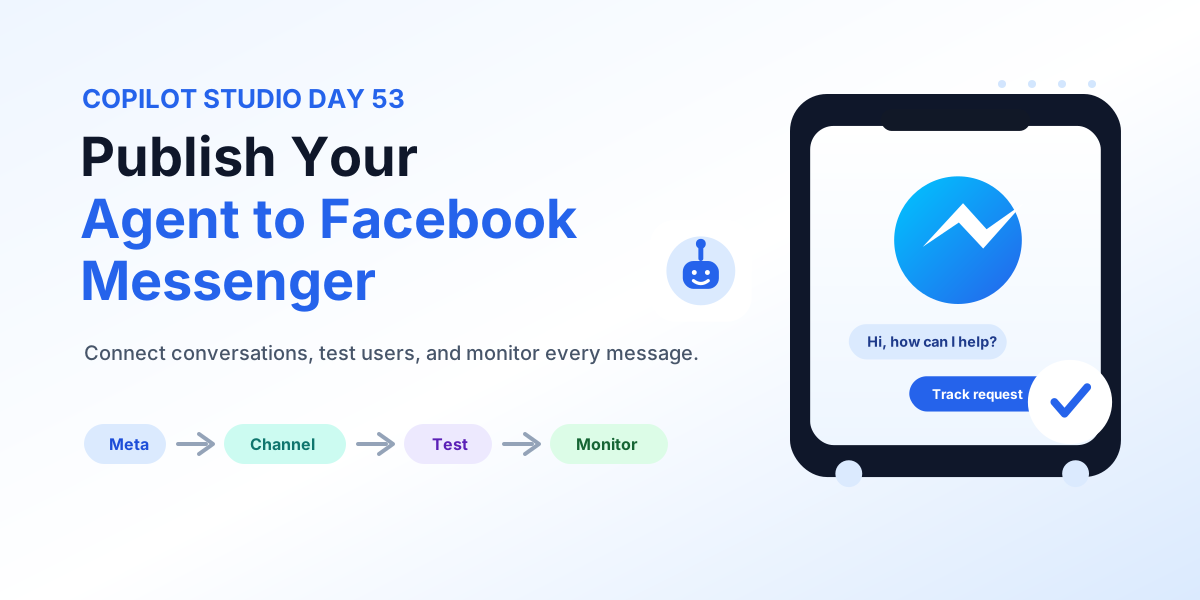
Week 8 · Day 53 of 365 in 365 Days of Copilot Studio — view the full series
Before you start
Is this guide for you?
- Best entry point
- 365 Days of Copilot Studio
- Time investment
- 12 min read
In this article
- Why Facebook Messenger?
- What Are We Deploying?
- Understand the Architecture
- Before You Start
- Publish Your Copilot First
On this page (22 sections)
Day 53 of 365 Days of Copilot Studio explains how to publish your Copilot Studio agent to Facebook Messenger so people can reach your assistant in a channel they already use every day.
Messenger deployment is a different kind of launch from Microsoft Teams or a website. Teams is usually internal. A website is controlled by your web experience. Facebook Messenger is conversational, mobile-first, external-facing, and tied to Meta assets such as a Facebook Page and developer app. That makes planning, authentication, data protection, testing, escalation, and monitoring especially important.
This lesson builds on Day 44: Publishing Your Copilot, Day 51: Publish Copilot to Microsoft Teams, and Day 52: Publish Copilot to a Website.
Note: A Messenger launch is not only a channel switch. It is an external user experience with its own audience, brand expectations, permissions, support model, and monitoring needs.
Why Facebook Messenger?
Facebook Messenger helps you meet users where they already chat. For customer service, lead intake, product support, appointment questions, community engagement, and public-facing FAQs, a Messenger copilot can reduce friction because the conversation starts inside a familiar messaging experience.
| Benefit | What it means | Example |
|---|---|---|
| Meet users where they chat | Users can ask questions without finding a separate portal or support form. | A customer messages your Facebook Page to ask about a service. |
| Provide instant assistance | The copilot can answer common questions quickly, even outside office hours. | Store hours, pricing, booking instructions, return policy, or service status. |
| Extend reach | Your agent can support external audiences beyond Microsoft 365 channels. | Prospects, customers, partners, event attendees, or community members. |
| Build better experiences | Conversation starters and guided responses help users move from question to next step. | Lead capture, support routing, appointment request, or case follow-up. |
What Are We Deploying?
The deployment connects a published Copilot Studio agent to Facebook Messenger through the messaging channel configuration. The goal is to let Messenger users start a conversation with the agent, receive grounded responses, complete supported actions, and escalate to a human when needed.
The core deployment path is:
- Build your copilot: design the agent, topics, knowledge, actions, and instructions.
- Test thoroughly: validate conversations, fallback, actions, and user expectations.
- Publish the copilot: release the approved version before configuring the channel.
- Connect Messenger: configure the messaging channel and Meta assets.
- Validate and operate: test the real channel, monitor usage, and improve continuously.
Understand the Architecture
A Messenger deployment has more moving parts than a simple embedded website widget. The user interacts with Facebook Messenger. Messenger routes the message through Meta platform configuration. Copilot Studio processes the conversation, uses knowledge and actions where configured, and returns a response through the same channel.
| Layer | Purpose | Validation needed |
|---|---|---|
| User channel | Facebook Messenger app or web experience where the user sends messages. | Mobile rendering, quick replies, message formatting, and response timing. |
| Meta assets | Facebook Page, Meta app, Messenger configuration, permissions, and tokens. | Ownership, app mode, permissions, page access token, and channel connection. |
| Copilot Studio channel | Messaging channel that connects Messenger to the published agent. | Correct agent, correct environment, correct channel settings, and secure setup. |
| Knowledge and actions | Business content, flows, connectors, APIs, and handoff paths used by the agent. | Permissions, data boundaries, failure handling, and real-user behavior. |
Before You Start
Do not connect an unfinished agent to Messenger. External users may ask short, ambiguous, informal, or unexpected questions. They may also expect fast responses, simple options, and a clear path to a person when automation is not enough.
- Build the copilot: complete the agent purpose, core topics, instructions, knowledge, and actions.
- Test thoroughly: validate the happy path, edge cases, fallback, and action failures.
- Verify knowledge and actions: use approved content and reliable downstream systems.
- Check permissions and security: confirm what anonymous or authenticated users can access.
- Prepare Meta assets: identify the Facebook Page, app owner, permissions, and deployment account.
Publish Your Copilot First
Publishing is the release step that makes your tested Copilot Studio version available to channels. Messenger should connect to a known, approved version, not a half-finished draft.
- Validate everything: test topics, knowledge, actions, security, fallback, and handoff.
- Lock in your version: publish the tested version before channel setup.
- Enable secure connections: review connected actions, environment variables, and connection references.
- Confirm readiness: make sure the business owner, support owner, and channel owner agree to proceed.
Warning: Publishing is not the same as Messenger deployment. Publishing releases the agent version. Messenger deployment makes that version reachable by users through a public messaging channel.
Open Channels and Select the Messaging Channel
In Copilot Studio, channels define where users interact with the agent. Open the published copilot, go to Channels, and select the messaging channel used for Facebook Messenger deployment.
During setup, confirm the channel is tied to the correct environment and agent. This matters when you have separate development, test, and production copilots. A production Messenger page should not accidentally connect to a test agent or a stale draft.
Prepare Your Meta Assets
Before connecting Messenger, prepare the Meta-side assets. The exact names and screens can change over time, but the planning model is stable: you need ownership, app configuration, page access, and permissions that match the intended user experience.
- Create a Facebook app: use Meta for Developers to create or select the app used for Messenger integration.
- Create or select a Facebook Page: connect the page where users will message your organization.
- Generate a page access token: use a controlled admin account and handle tokens as sensitive deployment configuration.
- Assign the app to the page: confirm the app and page are connected correctly.
- Note callback details: keep required webhook, verification, and channel details available for the setup flow.
Connect the Experience
After the Copilot Studio channel and Meta assets are ready, connect the Messenger experience. Treat this like production integration work, not a copy-paste task.
- Start connection: open the Messenger channel setup from Copilot Studio.
- Select the Facebook Page: choose the page where users will talk to the agent.
- Enter access token details: paste required token or app configuration values carefully.
- Authorize and verify: complete the connection and verify that the correct page and agent are linked.
- Ready for customers: move forward only after real-channel testing passes.
Configure Messaging Behavior
Messenger conversations should feel direct, helpful, and easy to continue. Configure the first impression and conversation behavior before you invite users to try it.
- Set a welcome message: explain what the agent can help with in plain language.
- Define conversation behavior: decide when to ask a follow-up question, offer options, route to a topic, or escalate.
- Set response timing: keep replies clear and concise so the chat does not feel slow or heavy.
- Enable human handoff: define what happens when automation cannot safely complete the task.
- Review and save: confirm all channel settings before testing with real accounts.
Create a Strong Welcome Message
The welcome message is the first impression. It should be friendly, specific, and realistic. Users should understand what the agent can do, what it cannot do, and how to get help if the conversation stalls.
A strong welcome message should:
- Be friendly and welcoming: greet users naturally and invite them to ask a question.
- Explain what you do: describe the supported topics, services, or tasks.
- Set expectations: make clear when the agent can help and when a human may be needed.
- Guide next steps: offer examples or quick options so users are not staring at a blank chat.
- Keep it short and clear: Messenger is a compact channel, so avoid long opening paragraphs.
Add Conversation Starters
Conversation starters help users begin with useful questions. They also reduce vague messages such as "help" because users can tap a suggested option that routes them to a known topic.
| Starter type | Good example | Why it helps |
|---|---|---|
| Support request | Track my case | Routes users to a clear status-check flow. |
| Product question | Ask about pricing | Guides users into approved product information. |
| Appointment or booking | Book a consultation | Moves from conversation to action. |
| Human support | Talk to a person | Gives users an escape path when automation is not enough. |
Think About Authentication
Authentication is one of the most important design decisions for Messenger. Some Messenger copilots can be anonymous. Others need identity validation before showing account-specific data or running actions.
| Option | Use when | Risk to manage |
|---|---|---|
| No authentication | The agent answers public FAQs or collects simple public inquiries. | Do not expose private customer, employee, or transaction data. |
| Known user authentication | The agent needs to retrieve account, order, service, or case information. | Validate identity and authorization before returning sensitive details. |
| Secure connection to business data | The agent calls APIs, flows, Dataverse, SharePoint, or other systems. | Confirm connector identity, consent, permissions, and audit requirements. |
If the conversation touches private records, do not rely on the fact that a user can message the page. Messenger access is not the same as authorization to business data.
Protect Your Data
A Messenger copilot can reach external users quickly, which makes data protection a launch requirement. Keep the agent focused on approved content and make sure actions only expose information the user is allowed to receive.
- Collect only what you need: avoid requesting unnecessary personal or sensitive information.
- Store data securely: protect collected details in approved systems with clear ownership.
- Respect privacy: explain how user information is used where required by policy.
- Control access: limit what the agent can retrieve and what actions it can trigger.
- Review integrations: validate flows, connectors, APIs, and handoff systems before launch.
Test the Real Channel
Testing in Copilot Studio is necessary, but it is not enough. Test the actual Messenger experience before you promote it to users. Real-channel testing shows whether messages display correctly, quick replies behave as expected, and the conversation still feels natural on mobile.
- Open Messenger and your Page: start from the same place users will start.
- Check key scenarios: run the top user questions and action flows.
- Validate responses: confirm accuracy, formatting, tone, and next steps.
- Test connected actions: verify actions work with realistic inputs and permissions.
- Confirm user experience: check mobile layout, quick replies, handoff, and error messages.
Test Real User Scenarios
Use real users and realistic questions. Makers often test with clean prompts, but customers write short messages, incomplete questions, spelling mistakes, and follow-up replies without context.
Include scenarios such as:
- Normal happy-path questions the agent should answer quickly.
- Ambiguous questions where the agent should ask a clarifying question.
- Out-of-scope requests where the agent should redirect or escalate.
- Action failures where the agent should explain the issue and offer a next step.
- Mobile conversations where the answer must stay readable and compact.
Handle Errors Gracefully
External channels need strong error handling because users may leave quickly if the conversation fails. Error messages should be calm, short, and useful. They should explain what happened at a human level and give the user a safe next step.
| Error type | Better response | Owner action |
|---|---|---|
| Unknown question | Ask a clarifying question or offer suggested topics. | Add missing trigger phrases or a new topic if the question repeats. |
| Action failure | Tell the user the action could not be completed and offer a support path. | Review flow runs, connector errors, API logs, and permissions. |
| Authentication problem | Ask the user to retry sign-in or use an approved support route. | Check identity setup, token behavior, and authorization rules. |
| Delayed human response | Set expectations and collect the information needed for follow-up. | Review handoff staffing, hours, and service-level expectations. |
Provide Human Escalation
Not every conversation can or should be handled by automation. Messenger users need a clear route to human support when the agent cannot answer, the request is sensitive, or the user is frustrated.
- Offer clear options: show when the user can contact a person or create a support request.
- Route to the right team: direct sales, support, billing, or operations questions to the right owner.
- Collect useful context: capture the user question, category, and contact details where appropriate.
- Keep the user informed: explain expected response time and next steps.
Monitor Conversations
After launch, monitor Messenger conversations so the agent keeps improving. Look for both adoption signals and quality signals. High usage is helpful only when the answers are useful and users can complete their tasks.
Track these signals:
- Total conversations and active users.
- Top topics, repeated requests, and emerging intents.
- Fallback rate and unanswered questions.
- Escalation rate and handoff quality.
- Action failures, authentication issues, and slow responses.
- User satisfaction, complaints, and support-ticket impact.
Improve From Real Conversations
Every conversation is an opportunity to improve your agent. Review transcripts, feedback, fallback patterns, escalation reasons, and unresolved questions. Then convert those findings into topic updates, better knowledge, improved prompts, cleaner actions, and stronger handoff paths.
- Review conversations: identify common misses, repeated asks, and unclear answers.
- Improve topics: add trigger phrases, split overloaded topics, and simplify branches.
- Update content and flows: refresh knowledge, fix action failures, and remove stale answers.
- Monitor impact: check whether changes reduce fallback, escalations, or repeated complaints.
- Repeat: treat Messenger as an operated channel, not a one-time publish.
Common Deployment Mistakes
| Mistake | Why it hurts | Better practice |
|---|---|---|
| Incorrect page or token | The wrong Facebook Page is connected or the channel fails unexpectedly. | Verify page ownership, app configuration, and token handling before launch. |
| Missing permissions | The integration works for an admin but fails for normal users or reviewers. | Confirm Meta permissions, Copilot Studio access, and downstream data permissions. |
| Unpublished or incomplete agent | Users receive draft-quality answers or missing conversation paths. | Publish the approved version and run regression tests before channel rollout. |
| Skipping real-channel testing | The agent looks good in the studio but fails in Messenger. | Test in Messenger on desktop and mobile with realistic accounts. |
| No monitoring plan | The team misses recurring user issues and improvement opportunities. | Assign an owner for analytics, feedback, support review, and updates. |
Messenger Deployment Checklist
- Business goal, target audience, support owner, and success metrics are defined.
- Copilot is built, tested, approved, and published.
- Facebook Page, Meta app, permissions, token ownership, and channel details are ready.
- Messenger channel is connected to the correct Copilot Studio agent and environment.
- Welcome message and conversation starters are clear and useful.
- Authentication and data-access decisions are documented and validated.
- Connected actions are tested for success, failure, and permission boundaries.
- Real-channel testing is complete on Messenger desktop and mobile experiences.
- Error handling and human escalation paths are ready.
- Monitoring ownership and continuous improvement rhythm are assigned.
Key Takeaway
Publishing a Copilot Studio agent to Facebook Messenger is about more than connecting a channel. Plan well, test thoroughly, focus on users, monitor the launch, and keep improving from real conversations.
The goal is to give users a secure, helpful, and natural messaging experience that builds trust, saves time, and creates real value.
Tagged
AI Agents · Integrations · Security · Conversation Design · Governance
Frequently asked questions
Can I publish a Copilot Studio agent to Facebook Messenger?
Yes. A Copilot Studio agent can be made available through a messaging channel such as Facebook Messenger when the channel is configured, Meta assets are prepared, and the experience is tested in the real Messenger app.
What Meta assets are needed before connecting Facebook Messenger?
Prepare the Facebook Page, Meta developer app, Messenger product configuration, app permissions, page access token, and ownership details required by your deployment process.
Should a Messenger copilot require authentication?
It depends on the scenario. Public FAQ and lead capture scenarios may stay anonymous, but account-specific support, order status, HR, finance, or action-enabled experiences usually need secure identity validation.
Why should I test the real Messenger channel?
Real-channel testing exposes issues that the authoring canvas can miss, including message formatting, quick replies, mobile behavior, authentication prompts, handoff paths, and normal user permissions.
What should I monitor after launching a Messenger copilot?
Monitor conversation volume, unanswered questions, fallback rate, escalation rate, user satisfaction, action failures, authentication issues, response time, and recurring requests that should become new topics.
Sources
Have a Microsoft 365 topic idea?
Share article suggestions, community session ideas, corrections, or real-world scenarios for future nxtM365 learning notes.
Keep learning Microsoft 365
Explore more practical guides for SharePoint, Power Platform, Copilot Studio, migration, automation, governance, and security.
Continue learning
Related tutorials
Related questions
Related comparisons
Next action