Copilot Studio Conversation Analytics | Day 76
Use Copilot Studio conversation analytics to understand session outcomes, spot knowledge gaps, review feedback, and measure improvements to your agent.
- Published
- Updated
- Reading time
- 12 min read
Quick answer
Copilot Studio conversation analytics helps you understand usage, session outcomes, and user feedback. Start with one business question, review comparable reporting periods, investigate recurring unsuccessful interactions, and make a targeted change. Retest the original questions and compare follow-up evidence before deciding that the agent improved.
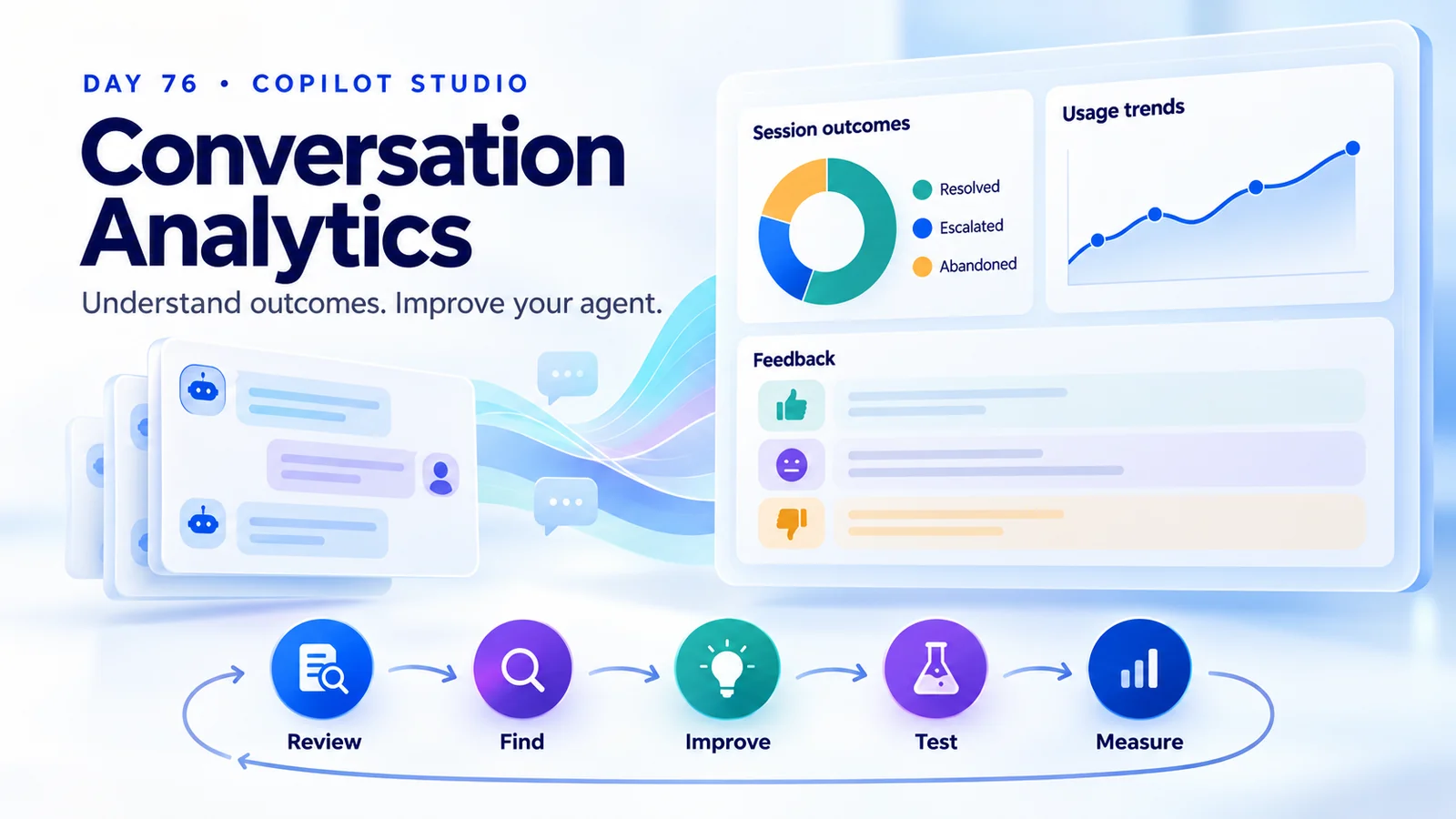
Week 11 · Day 76 of 365 in 365 Days of Copilot Studio — view the full series
Before you start
Is this guide for you?
- Best entry point
- 365 Days of Copilot Studio
- Time investment
- 12 min read
- Prerequisite knowledge
- An understanding of your agent’s intended tasks, approved knowledge sources, and published channels.
What you’ll learn
- Record the business task, reporting period, metric definitions, and sample size before comparing results.
- Conversations, analytics sessions, and users are different units; use the dashboard’s own definitions.
- Resolved outcomes do not independently prove answer accuracy, and appropriate escalation can be a successful result.
- Combine outcome rates with feedback and authorized session reviews to identify a specific repair.
- Repeat the original failure questions and compare similar periods after each targeted change.
Before you start
- Prerequisite knowledge
- An understanding of your agent’s intended tasks, approved knowledge sources, and published channels.
On this page (13 sections)
Day 76 of 365 Days of Copilot Studio explains how to turn Copilot Studio conversation analytics into a repeatable improvement process. Once an agent is published, the next question is whether it helps people complete their tasks, and which conversations deserve attention.
In Day 75, we investigated knowledge-source problems. This lesson connects that troubleshooting work to usage patterns, session outcomes, feedback, and evidence from individual interactions. The goal is a specific next action: a knowledge correction, a clearer clarification question, a more reliable tool, or an appropriate route to human help.
1. Decide What Success Means for Your Agent
A busy agent is not necessarily a useful agent. Conversation volume shows activity, but it does not tell you whether an employee found the correct policy, completed a request, or understood the next step. Start with the business task the agent is expected to support.
For an onboarding assistant, success might mean helping a new employee find an approved checklist. For an IT assistant, it might mean guiding someone through a permitted password-reset process. For a service agent, it might mean recognizing when a request needs a person and providing a usable handoff.
- Usage question: are the intended users starting and continuing relevant interactions?
- Outcome question: are those interactions reaching the intended destination?
- Experience question: do users understand and trust the answer or next step?
- Improvement question: which recurring problem can the team address and verify?
Write down one question before you review a dashboard. “Why do new employees stop when asked for their department?” is actionable. “Make every metric better” is too broad to guide a change.
2. Open Analytics and Set a Consistent Reporting Period
- Open Microsoft Copilot Studio and select the agent you want to investigate.
- Open its Monitor page. The supplied PDF uses the label Analytics; check the label in your current experience.
- Select a reporting period, then record its start and end dates.
- Note recent releases, knowledge changes, and campaigns that could affect usage.
- Check the metric definition and the unit being counted before making a comparison.
Microsoft documents analytics timestamps in UTC and notes that activity in the Copilot Studio test panel does not populate Monitor analytics. Allow time for completed-session data to appear. For navigation, access, and data availability, use the current Monitor overview.
If colleagues need access, use the supported sharing roles. Analytics Viewer provides analytics access; reading transcripts also requires the Bot Transcript Viewer security role. Having access to a chart does not automatically grant access to its underlying conversation text.
Keep a baseline before changing the agent. A short report should identify the agent, business question, reporting period, recent changes, and the data available for review. This makes the next review comparable with the first.
3. Distinguish Conversations, Sessions, and Users
A conversation is an interaction between a user and an agent. An analytics session is a unit used to analyze engagement and outcomes. One conversation can contain multiple sessions, so the two counts should not be substituted for each other. Microsoft explains the distinction in its conversational-session definitions.
| Measure | Question it helps answer | Interpretation check |
|---|---|---|
| Conversation or session volume | How much interaction is taking place? | Use the exact unit named in the chart; an interaction count is not a unique-user count. |
| Engagement | Are people reaching a substantive interaction? | Separate unengaged activity from sessions that progressed into a task. |
| Outcome breakdown | How do the measured sessions end? | Compare counts and rates for the same reporting scope. |
| Feedback | What do responding users say about their experience? | Check the number of responses and the specific answer or session being rated. |
For example, a person can ask a policy question and then start a different task during the same interaction. Treating every recorded session as a different person would exaggerate reach. Record the dashboard's units beside the numbers in your review notes.
4. Understand Resolved, Escalated, Abandoned, and Unengaged Outcomes
Outcome categories help you choose where to investigate. They are signals about how a session ended, rather than independent evidence that every answer was accurate or every business task was completed.
| Outcome | Meaning | Useful follow-up |
|---|---|---|
| Resolved | A successful ending classified as confirmed or implied. | Sample the answers and verify that they address the task using approved information. |
| Escalated | An escalation topic or transfer action ended the analytics session. | Determine whether human help was appropriate and whether the intended support path worked. |
| Abandoned | An engaged session timed out without reaching a resolved or escalated outcome. | Look for missing guidance, repeated questions, or an unclear next step. |
| Unengaged | A session did not progress into engagement. | Consider entry-point relevance and whether users understood what the agent could help with. |
Microsoft distinguishes confirmed from implied resolution, and intended, unintended, and user-requested escalation. Check its outcome definitions when interpreting a chart.
A handoff for a request requiring approval may be the correct result. Equally, a session categorized as resolved can contain an outdated answer. Review outcome signals alongside the actual business task before deciding whether to change the agent.
5. Calculate Rates Without Losing Their Context
Illustrative example: suppose a defined reporting group contains 100 eligible sessions: 80 resolved, 12 escalated, and 8 abandoned. Using that group as the denominator gives an 80% resolution rate, a 12% escalation rate, and an 8% abandonment rate. These are teaching figures, not results from a real nxtM365 agent.
Resolution rate = resolved sessions / eligible sessions × 100
Example: 80 / 100 × 100 = 80%
This calculation is useful only when the denominator matches the metric you intend to describe. If another group contains 20 unengaged sessions, including them changes the denominator to 120. Do not switch between those groups without labeling the change, and do not assume your manual calculation reproduces every dashboard metric.
Also record sample size. Eight resolved sessions out of ten and 800 out of 1,000 both produce 80%, but a single additional outcome changes the smaller sample much more. The kinds of requests matter too: a period dominated by straightforward questions is not directly comparable with a period of unusual exceptions.
Compare similar reporting periods and request types. If you do not have enough evidence to explain a change, write “needs further investigation” rather than presenting a percentage movement as proof of better answers.
6. Identify When Human Support Is Needed
The PDF highlights three useful investigation categories: complex questions, missing knowledge, and unsupported requests. Use them as starting points, then inspect the actual reason behind the handoff.
| Pattern | Illustrative issue | Possible action |
|---|---|---|
| Complex question | A user combines an eligibility question with an exception request. | Clarify the request, guide the supported part, and route the exception to its owner. |
| Missing knowledge | The approved onboarding instructions are absent from the available sources. | Add or correct the approved content, then repeat the unanswered questions. |
| Unsupported request | The agent is asked to make a change it cannot perform. | Explain the boundary and provide a clear supported alternative. |
| Tool or access problem | A request cannot complete because a connected action fails or the user lacks access. | Investigate the failing step and permissions before changing answer instructions. |
Avoid optimizing for fewer handoffs alone. Removing the escalation path can make a chart look different while leaving the user with no way to finish the task. Ask whether the destination was appropriate, the explanation was clear, and the receiving process could handle the request.
7. Read Usage Trends Alongside Business Events
Use activity over time to identify peaks, quiet periods, and changes following a release. A spike could result from an onboarding campaign, an internal announcement, or a service incident. It does not establish that the agent became more useful.
- More volume with recurring unanswered questions: investigate whether new demand falls outside the agent's coverage.
- Lower volume after a launch campaign: consider whether initial promotion has ended before assuming a quality problem.
- More unexpected endings after an update: repeat the affected journey and compare its steps with the previous version.
- Stable volume with fewer repeated questions: check whether users are finding a clearer answer or simply avoiding the topic.
Annotate the review with release dates and business events. Where your reporting supports it, compare like-for-like groups. Otherwise, state which differences you could not control.
8. Combine Satisfaction Scores With Specific Feedback
A satisfaction rating, a reaction to an individual response, and the result of a business task are different signals. A friendly answer can receive positive feedback even if it does not finish the task; an appropriate refusal can receive negative feedback even when it follows the intended policy.
Read comments for actionable detail. “The link opens last year's policy” suggests a source or version problem. “It keeps asking for my department” suggests a clarification or conversation-flow problem. “I need a person” may point to an unsupported request or a missing handoff.
Microsoft describes CSAT as an average score out of five from sessions with survey responses. Keep the response count beside the score. People who did not respond are not represented by that average. See the customer satisfaction and reactions documentation for the current controls.
Group feedback by problem rather than treating every low score as a prompt-writing issue. The repair might belong to the content owner, the application team, or the support process.
9. Investigate Individual Sessions and Repeated Failures
A summary chart tells you where to look; a session review helps explain what happened. When available, drill into a relevant chart segment and inspect the associated interaction. Microsoft describes its question, session, and feedback views, including access to the underlying transcript.
- Write the user's intended task in plain language.
- Identify the first point where the answer, clarification, or action stopped helping.
- Check the source or tool involved at that point.
- Decide whether the issue is missing information, retrieval, instructions, access, an action failure, or a support boundary.
- Find another interaction with the same pattern before deciding that the problem is widespread.
- Record a reproducible test question and the expected behavior.
Start with a bounded review sample, such as ten interactions relevant to one recurring issue. This is a practical starting point, not a statistically representative survey. Record how you chose the sample so another reviewer can understand its limits.
Review only information you are authorized to access. Use a concise, de-identified issue description in your change log, rather than copying personal details or entire transcripts into general team notes.
10. Turn Each Insight Into a Targeted Improvement
Worked scenario: an onboarding assistant repeatedly gives a generic answer when employees ask for a department-specific checklist. A review shows that the approved source contains the information, but its headings and links make the department distinction difficult to find.
- Describe the failure: users asking about department onboarding receive a general checklist.
- Assign an owner: the content owner checks the approved departmental instructions.
- Make a focused change: clarify the headings and links; add a department clarification where needed.
- Repeat realistic questions: test a named department, a paraphrase, and a request with no department supplied.
- Check the boundary: an unsupported department should receive a clear next step rather than an invented checklist.
Change one identifiable issue at a time where practical. If knowledge, instructions, tools, and escalation rules all change together, it becomes harder to explain which change affected the result.
11. Compare Before and After Without Inventing a Success Story
Keep the original failure cases and test them again after the change. Then review a comparable period of published-agent activity. Use both evidence types: a successful retest shows that a known scenario improved, while operational data helps you understand whether that improvement reaches real users.
| Comparison | Before the change | After the change |
|---|---|---|
| Reporting scope | Record dates, relevant request types, and recent releases. | Use a comparable scope and note differences. |
| Outcome counts | Record the measured counts and their denominator. | Compare the same definitions, including sample size. |
| Known failure questions | Save the question and expected behavior. | Repeat the question and realistic variations. |
| Feedback themes | Describe the recurring complaint. | Check whether the same complaint persists. |
| Unintended effects | Record important working scenarios. | Retest them to catch regressions. |
The PDF illustrates a possible direction of improvement: fewer unnecessary escalations and more useful resolved interactions. Treat that as a goal to investigate, not an observed result or a guaranteed consequence of adding knowledge.
12. Use a Small Review Template and Improvement Loop
Keep the process simple enough to repeat. Choose a review cadence that fits the agent's traffic and the business task, and give each agreed change an owner.
Agent and business task:
Reporting period and timezone:
Recent release or knowledge changes:
Metric definitions and sample size:
Recurring issue and de-identified example:
Expected behavior:
Proposed change and owner:
Test questions and important regression cases:
Release date:
Follow-up period and observed result:
Open questions:
Follow the cycle shown in the hero image: Review → Find → Improve → Test → Measure. If a change improves one metric but the original question still produces the wrong answer, keep the issue open. If the result is unclear, collect more relevant evidence before making a broader change.
Day 76 Practice: Produce One Actionable Analytics Review
Choose one agent and one reporting period. Allow about 30 minutes for an initial review, then schedule any deeper investigation separately.
Your deliverable: a short review that connects a measured pattern to an observed issue, a proposed change, and a way to verify the result. Continue with the 365 Days of Copilot Studio series, or revisit knowledge-source troubleshooting when your investigation points to retrieval or content quality.
Tagged
AI Agents · Knowledge Sources · Generative AI
Frequently asked questions
What should I review in Copilot Studio conversation analytics?
Start with session volume and outcomes, then review usage trends and available feedback. Investigate recurring unsuccessful conversations and turn them into specific, testable improvements.
Does a resolved session prove that an answer was correct?
No. Resolution is an outcome signal, not an independent check of factual accuracy. Review representative answers against approved sources and test important business scenarios.
Does an escalation mean the agent failed?
Not necessarily. Some requests need human judgment or approval. Check whether escalation was appropriate, whether the next step was clear, and whether the support process actually worked.
How can I measure whether an agent improvement worked?
Keep a baseline, fix a specific recurring problem, repeat the original questions, and compare similar periods after release. Review volume and feedback alongside outcome rates.
Sources
- Monitor overview and analytics access — Microsoft Learn, Microsoft, accessed 2026-10-13
- Explore user questions, session, and feedback data — Microsoft Learn, Microsoft, accessed 2026-10-13
- Monitor conversational agents — Microsoft Learn
Have a Microsoft 365 topic idea?
Share article suggestions, community session ideas, corrections, or real-world scenarios for future nxtM365 learning notes.
Keep learning Microsoft 365
Explore more practical guides for SharePoint, Power Platform, Copilot Studio, migration, automation, governance, and security.
Continue learning
Related tutorials
Related questions
Related comparisons
Next action