Copilot Studio Production Issues and Fixes | Day 92
Diagnose Copilot Studio production issues with practical checks for authentication, actions, knowledge, performance, and recovery.
- Published
- Reading time
- 3 min read
Quick answer
Diagnose a Copilot Studio production issue by confirming the symptoms and impact, containing harm, and reviewing conversation evidence, connections, flow runs, and destination state. Fix the identified cause, verify the business outcome with representative users, and document prevention and recovery steps.
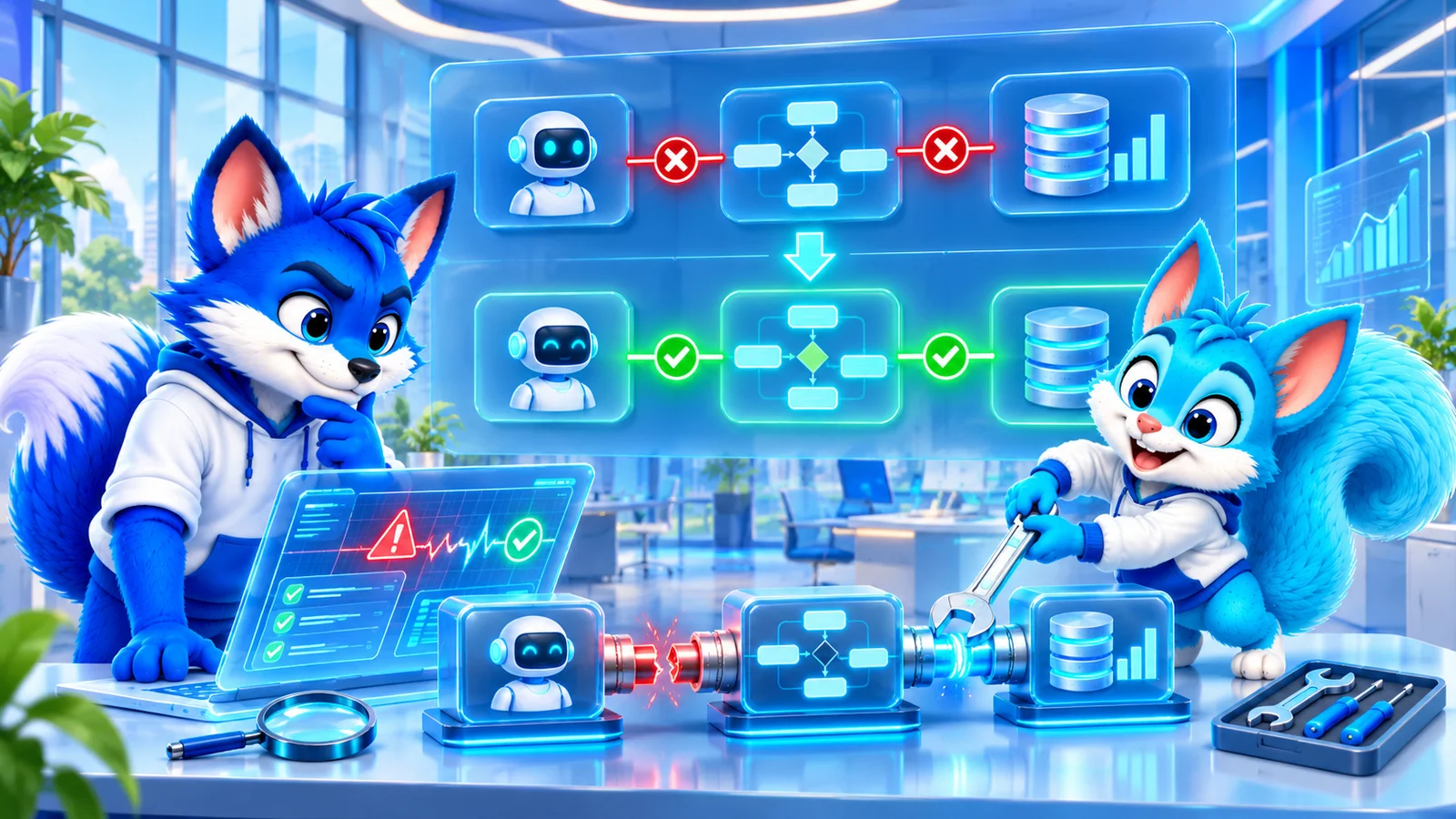
Week 14 · Day 92 of 365 in 365 Days of Copilot Studio — view the full series
Before you start
Is this guide for you?
- Best entry point
- 365 Days of Copilot Studio
- Time investment
- 3 min read
- Prerequisite knowledge
- A production agent, its intended business outcomes, ownership, connected services, and access to relevant diagnostics.
What you’ll learn
- Confirm the symptom, affected users, and impact before changing configuration.
- Investigate identity, permissions, connections, and the actual execution path.
- Check flow results and destination state before retrying a write.
- Review source content and permissions when answers are wrong or missing.
- Measure latency by dependency, validate recovery, and document the cause.
Before you start
- Prerequisite knowledge
- A production agent, its intended business outcomes, ownership, connected services, and access to relevant diagnostics.
On this page (8 sections)
Day 92 of 365 Days of Copilot Studio focuses on diagnosing and recovering from production issues. An agent that worked in a test environment can behave differently when it meets production identities, connections, data, traffic, and real user requests.
Building on Day 91: Monitoring, Metrics and Alerts, this lesson uses the PDF’s four common issue areas: authentication, failed actions, knowledge, and performance.
Start by confirming and containing the issue
- Confirm: Capture the reported symptoms, time, channel, affected request, and whether the issue can be safely reproduced.
- Assess: Identify affected users, business processes, and whether incorrect information or incomplete actions have caused harm.
- Contain: Use the approved incident process to limit impact, such as directing users to a fallback or temporarily restricting a failing capability where appropriate.
Preserve relevant evidence and involve the service owner. Avoid changing several settings at once, which can make the cause harder to identify. Protect conversation and diagnostic data according to organizational policy.
Gather evidence across the execution path
Review available conversation details, agent diagnostics, flow run history, connection status, and downstream service records. Correlate times and identifiers where available. Compare the production configuration with the tested version, including environment variables, connection references, permissions, source locations, and published version.
The Copilot Studio Monitor page and supported Application Insights telemetry can provide useful signals; availability depends on configuration and the experience in use.
1. Authentication and access failures
Determine which identity is affected and which identity each connection uses. Check channel authentication, the user’s access, connection validity, and permissions in the destination service. A maker’s successful test does not establish that a regular user has the same access.
Repair the identified connection or permission issue using the organization’s approved process. Retest with representative authorized and unauthorized accounts, and preserve least privilege. Do not grant broad access merely to make a test pass.
2. Failed actions and flows
Inspect the failed run and the specific step, inputs, error, connection, timeout, or throttling evidence. Verify that the target service and its dependencies are available. A response such as “I’ll update it” does not prove that the SharePoint item or other destination actually changed.
Before retrying a write, inspect the destination to determine whether a partial or successful update already occurred. Use an appropriate recovery procedure that avoids duplicate or conflicting changes. After the cause is fixed, verify the intended business result and make sure failures produce a clear response or escalation.
3. Wrong or missing knowledge answers
Check whether the source contains the correct, current information, whether the agent is connected to the intended scope, and whether the affected user can access it under the configured retrieval model. Review citations and remove or correct stale and conflicting material with the content owner.
Retest the original question and related cases with representative users. The SharePoint security guide provides related source-permission checks.
4. Slow responses
Measure where time is spent across the conversation, knowledge retrieval, workflow execution, and external services using available diagnostics. Compare with a normal baseline and investigate timeouts, retries, service limits, and recent changes. Optimize the measured bottleneck and retest both response time and correctness.
Recover, verify, and learn
After applying a targeted fix, test the affected user journey in the production channel with appropriate accounts. Confirm the destination state, error handling, and monitoring signals; communicate recovery through the established incident process. Continue watching for recurrence.
Document the cause, impact, recovery steps, and follow-up actions. Improve tests, error handling, monitoring, and deployment checks so the same failure is easier to prevent or diagnose next time.
Production readiness checklist
- Authentication and access are tested with representative users.
- Connections and production configuration are verified.
- Action errors and recovery paths are tested.
- Knowledge sources and permissions are reviewed.
- Monitoring, alerts, and an incident owner are in place.
- Recovery and safe retry procedures are documented.
- Business outcomes are verified after changes.
Use this checklist with the Day 85 deployment checklist and revisit it after each incident or significant release.
Tagged
AI Agents · Performance · Integrations · Security
Frequently asked questions
Why can an agent work in testing but fail in production?
Differences in configuration, identities, permissions, connections, dependencies, traffic, and user inputs can expose issues that test cases missed. Compare evidence from both environments.
Does a successful agent response prove an action completed?
No. Inspect the action and flow results and verify the actual destination state before telling the user that the operation succeeded.
Should a failed flow always be rerun?
No. First determine what already happened in the destination and whether retrying can duplicate or overwrite work. Use an appropriate recovery procedure.
How do I investigate slow responses?
Measure the stages and dependencies involved, including tools, workflows, external services, and knowledge retrieval. Use available telemetry and compare against a baseline before making changes.
Sources
- Monitor agent performance in Copilot Studio, Microsoft, accessed 2026-11-06
- Telemetry with Application Insights, Microsoft, accessed 2026-11-06
- Configure and manage connections, Microsoft, accessed 2026-11-06
Have a Microsoft 365 topic idea?
Share article suggestions, community session ideas, corrections, or real-world scenarios for future nxtM365 learning notes.
Keep learning Microsoft 365
Explore more practical guides for SharePoint, Power Platform, Copilot Studio, migration, automation, governance, and security.
Continue learning
Related tutorials
Related questions
Related comparisons
Next action